MP4 Container Format - Audio and Video Fundamentals
作者:罗上文,微信:Loken1,公众号:FFmpeg弦外之音
The MP4 container format is implemented based on the ISO/IEC 14496-12 standard. First, let us explain what the name ISO/IEC 14496-12 means.
ISO stands for the International Organization for Standardization.
IEC stands for the International Electrotechnical Commission.
These are two international organizations. Streaming media is an area of common interest to both, so they sometimes cooperate to develop standards.
14496 is actually a family of protocols in the MPEG-4 standard. It contains more than 30 documents defining codec standards and container formats. The document used by MP4 is document 12, titled "ISO base media format".
The standards define things in fairly broad terms. Anything they mention must be implemented according to the specification; anything they do not mention can generally be implemented freely. ISO/IEC 14496-12 is a base container format. You could also build MP5 or MP6 container formats for internal use on top of this standard.
Now that the background of MP4 is covered, let us look at some practical details. As usual, analyzing a binary format by reading the specification alone can be confusing. The best way to learn is to get an MP4 analysis tool and inspect a real MP4 file.
This article uses Mp4Explorer, with walking-dead.mp4 as the sample file. We open walking-dead.mp4 in Mp4Explorer, as shown below:
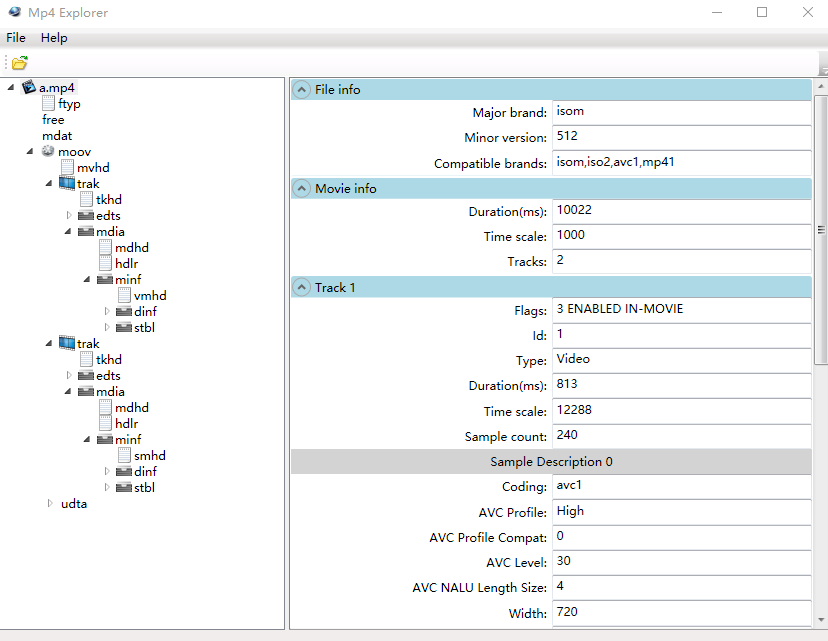
PS: The filename in the image is a.mp4. This is an older screenshot; a.mp4 and walking-dead.mp4 have the same content, but I changed the filename.
As the image shows, the MP4 format is organized as boxes: a box contains child boxes, and those child boxes can contain more boxes. It looks a lot like JSON.
Mp4Explorer does not display the corresponding binary data, which is inconvenient. However, I have not found a better MP4 analysis tool, so we also need the binary plug-in for Notepad++ to inspect the data. See the image below:
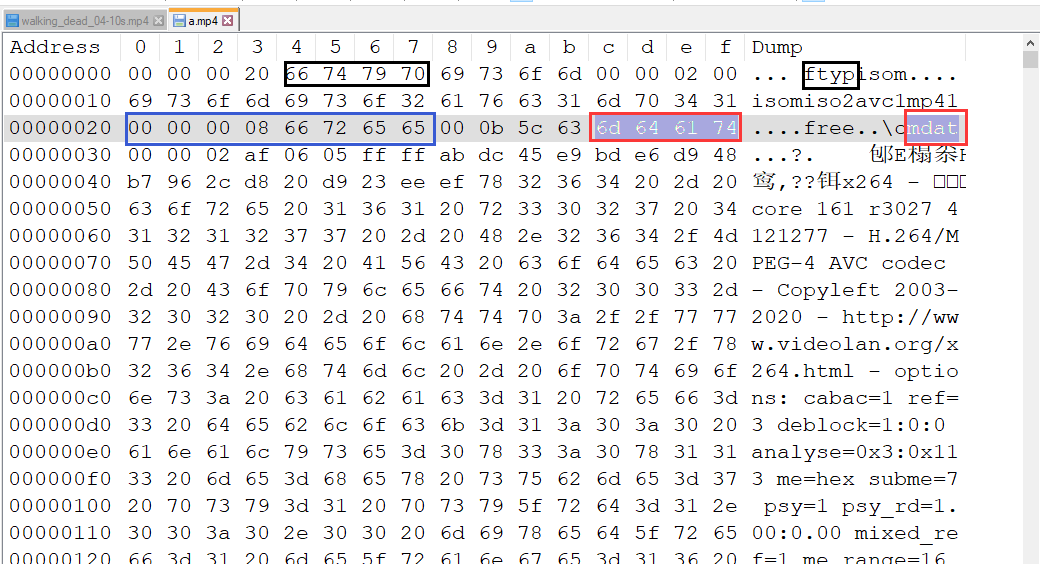
The basic process for parsing an MP4 file is as follows. Bytes 0-3 contain the box size, and bytes 4-7 contain the box type. As shown above, the first box in walking-dead.mp4 has a size of 0x20 bytes (including its header), and its type is ftyp. The contents of these 0x20 bytes are parsed according to the ftyp type.
The first ftyp box is 0x20 bytes long. Once it has been parsed, the second box begins immediately. The size of the second box is stored in bytes 0x20-0x23, and the second box is a free box, whose contents can be customized. The same process continues for the rest of the file. A box may contain more boxes, which are parsed in exactly the same way: the first 4 bytes are the size and the next 4 bytes are the box type.
The image above marks three boxes in different colors.
- The box circled in black is ftyp, short for File Type Box. The 4 bytes before ftyp are 0x20 (in hexadecimal), so this ftyp box is 32 bytes long. Those 32 bytes include the 4-byte size field. ftyp is a top-level box and has no child boxes.
- The box circled in blue is free. It is only 8 bytes long: 4 bytes for size and 4 bytes for type.
- The box circled in red is mdata, short for Media Data. This is the most important box: the AVPacket data written by FFmpeg is stored inside it. The 4 bytes before mdata contain its size, 00 0b 5c 63, meaning that this mdata data occupies 0x0b5c63 bytes.
The first image shows that the moov box follows the mdata box, so moov is immediately adjacent to mdata. How can we find the position of moov?
As noted above, the mdata box starts at 0x28 and has a size of 0x0b5c63 bytes. Therefore, the position of moov is 0x0b5c63 + 0x28 = 0x0b5c8b.
We jump to 0x0b5c8b in Notepad++ and see whether the string moov appears there.

The string moov does indeed appear near position 0x0b5c8b. The ASCII codes for moov are 6d 6f 6f 76. The preceding 4 bytes, 00 00 26 39, contain the size of the moov box.
At this point, the structure of MP4 boxes should be clear. It is simple: the first 4 bytes are the size, the next 4 bytes are the type, and the remaining data in the box is parsed according to that type.
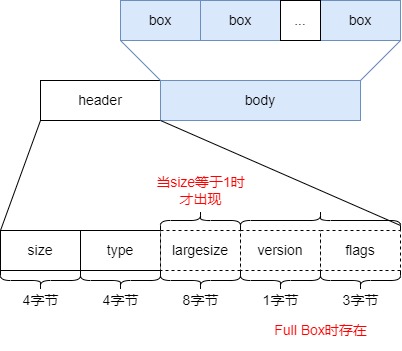
However, size has two special values, 0 and 1. See the image below.
- When size equals 0, the box is the last box in the file.
- When size equals 1, more bits are needed to describe the box length, so a 64-bit largesize field is defined later to hold the box length.
Next, let us focus on the internal structure of the moov box. See the image below:
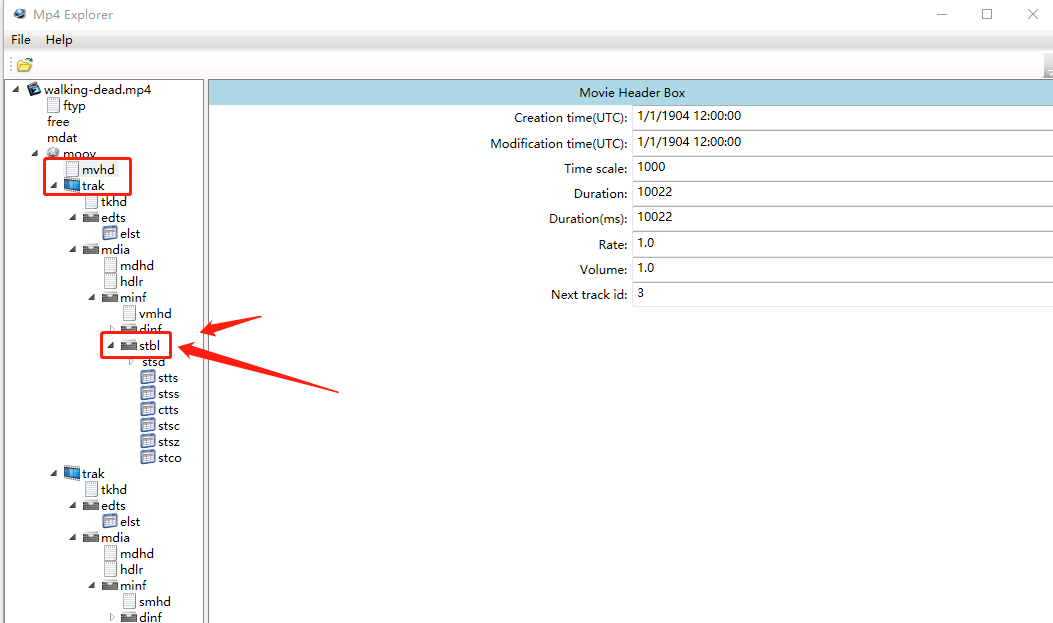
The image highlights three important boxes:
- mvhd, short for Movie Header Box. It stores basic information such as the file's duration.
- trak, short for Track Box. An audio stream or a video stream normally corresponds to one trak box.
- stbl, short for Sample Table Box.
The most important part of MP4 is stbl. The stbl shown above contains a box called stsd. The other six items, stts, stss, ctts, stsc, stsz, and stco, are all data tables.
First, let us look at the stsd box (full name: Sample Description Box), as shown below:
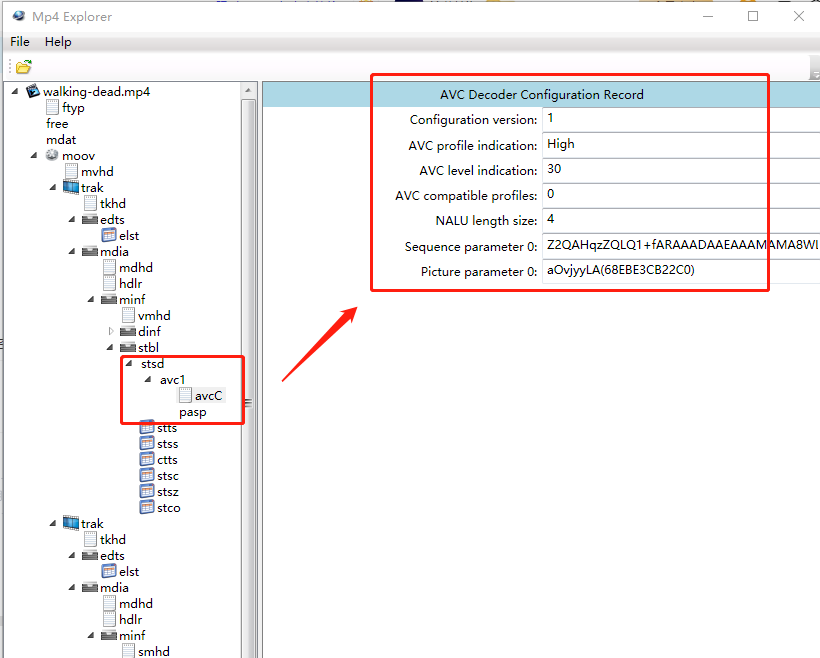
The stsd box stores codec information. This file uses H.264, which is also called AVC encoding.
Next, let us analyze the stts table, whose full name is Decoding Time to Sample Box. See the image below:
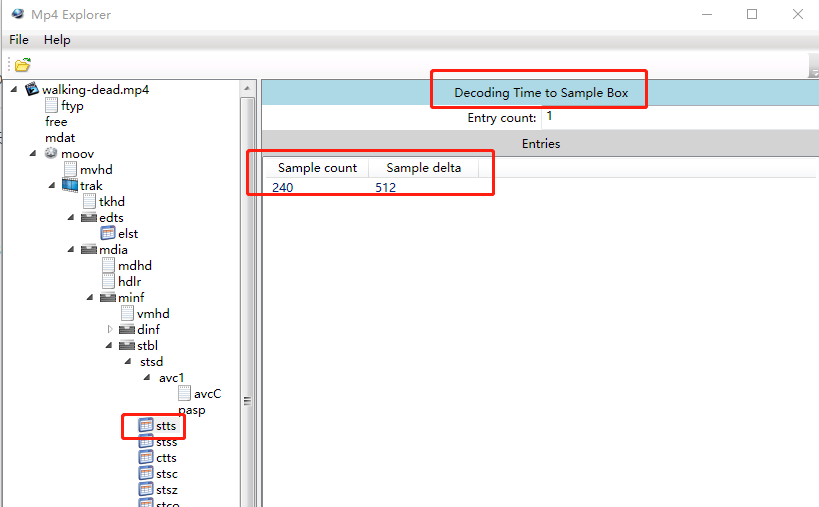
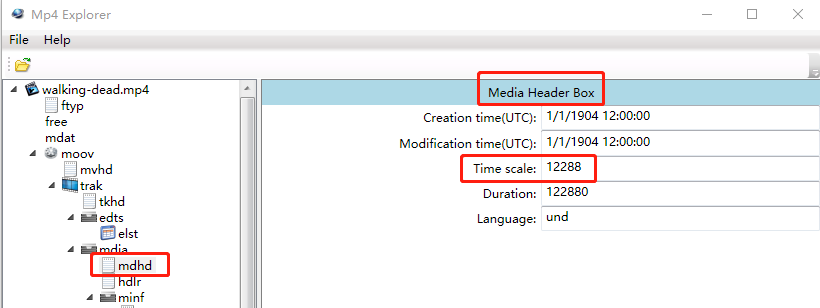
As shown above, this stts table has only two columns: Sample count and Sample delta. The unit of Sample delta is 12288, meaning that one second is divided into 12288 units. Sample delta occupies 512 of those units, so it represents 41 milliseconds. This time scale of 12288 is defined in the mdhd box, as shown below:
I am not very familiar with this stts box either, so we need to consult the standard. Its definition is shown below:
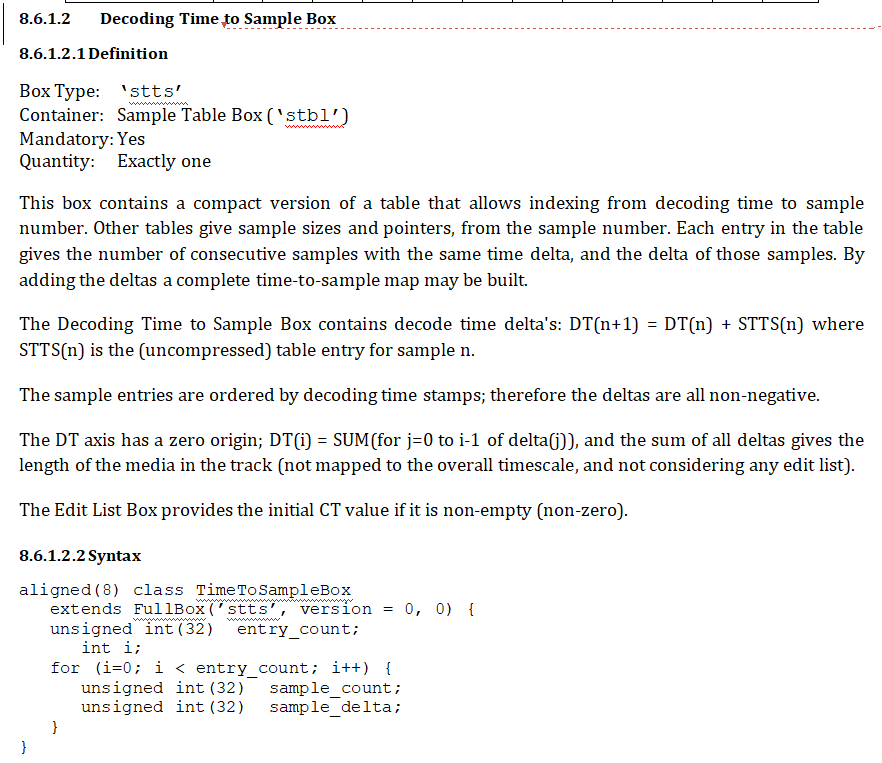
Let me restate the meaning of the paragraph in the specification. First, consider the meaning of the first formula:
DT stands for Decoding Time. n identifies a frame, and STTS(n) is the uncompressed table entry. At first, I did not understand what uncompressed meant. Looking at the stts table again, the 240 rows of data have been compressed into one row. To understand the formula above, we need to decompress that one row back into 240 rows. n in stts is the row number and also identifies the frame, so STTS(n) represents that frame's Sample delta (its playback duration). In plain language, the formula is:
Decoding time of frame 5 = decoding time of frame 4 + playback duration of frame 4
The playback duration of frame 4 can be obtained from the uncompressed STTS(n).
The stts table has only two columns. In this example, Sample count is 240 and Sample delta is 512, or 41 milliseconds. Therefore, the playback duration of frames 1-240 is 41 milliseconds. This technique is very common in audio and video, so remember it. Because all 240 rows have the same value, they are merged into one compressed row. The value 240 tells you the final index.
If there is a second row, for example Sample count = 10 and Sample delta = 1024, as shown below:
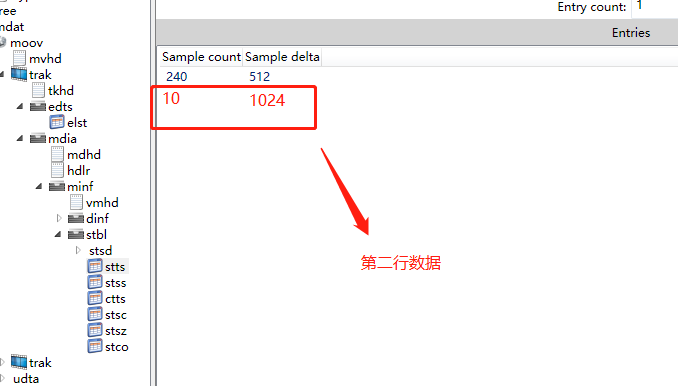
the playback duration of frames 241-250 is 82 milliseconds.
With this stts time table, it is easy to find the frame corresponding to a time. For example, if a client wants to seek to 3 seconds, simply iterate through the rows of stts. Find the stts(n) row whose time does not exceed 3 seconds, then divide the remaining time by Sample delta to find the corresponding frame. This only identifies the frame number. To find where that frame is located in the file and how many bytes it occupies, we must also consult the ctts, stsz, and stco tables. Because stts stores decoding time, if there are B-frames and the client wants playback time, additional processing is required. Decoding time and playback time are usually not very far apart.
Why use the stts table to look up the frame corresponding to a particular time instead of calculating it directly from the frame rate?
The frame rate does not mean that every frame has a fixed playback duration. For example, a 10-second video with 240 frames plays an average of 24 frames per second, but that is only an average. The container format may allow 16 frames to play during the first 0.5 seconds and 8 frames during the next 0.5 seconds. The PTS of each frame can be defined independently by the container format.
Next, let us analyze the stss table, whose full name is Sync Sample Box. It is called the keyframe table, or the sync table, because keyframes can be decoded independently and are commonly used for synchronization. See the image below:
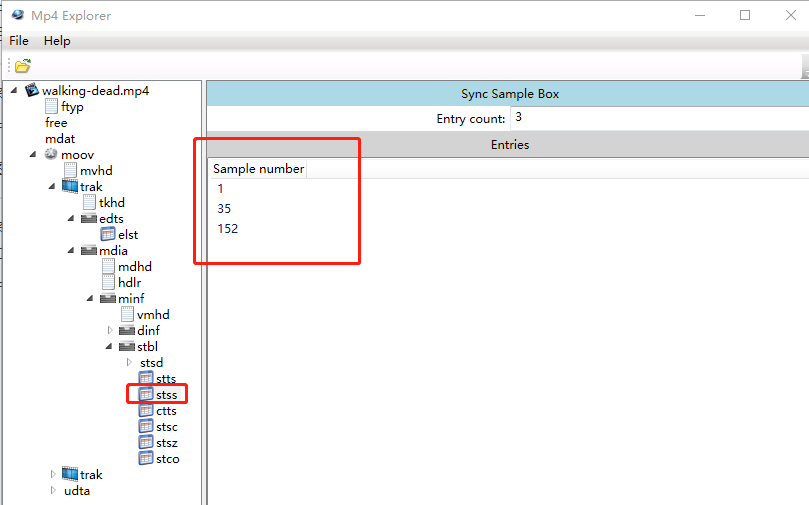
As shown above, walking-dead.mp4 has three keyframes: frames 1, 35, and 152. Keyframes occupy comparatively more bytes.
Next, let us analyze the ctts table, whose full name is Composition Time to Sample Box. It is a time-compensation table. stts stores decoding time rather than playback time, and B-frames create a difference between the two. The ctts table records this difference, as shown below:
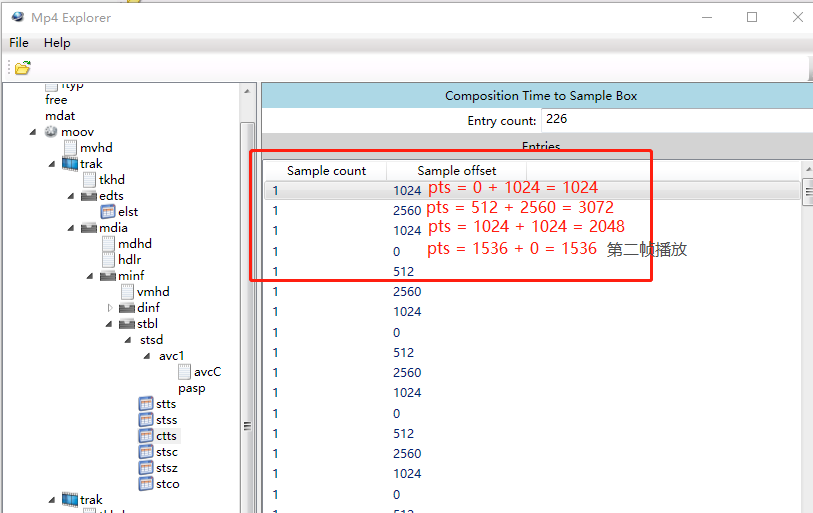
The ctts table also has only two columns and uses the same compression scheme as stts: if consecutive rows have the same value, they are compressed into one row. PTS = DTS + Sample offset, so the fourth row is the second frame in playback order.
Next, let us analyze the stsz table, whose full name is Sample Size Box. It records the size of each frame, as shown below:
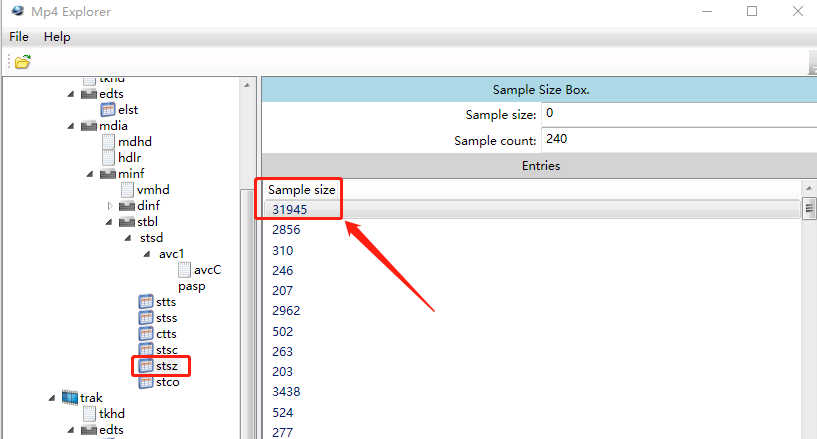
You can see that frames 1 and 35 are relatively large because they are keyframes.
We now know each frame's decoding time from stts and each frame's size from stsz. To locate each frame, we still need its position. Position information is stored in the stsc and stco tables.
First, let us look at stsc, whose full name is Sample To Chunk Box. It maps frames to chunks. The MP4 format defines a chunk, and a chunk can contain multiple frames. I am not entirely sure why chunks were designed this way; readers who know can leave a comment.
In general, a chunk can contain one or more frames. See the image below.
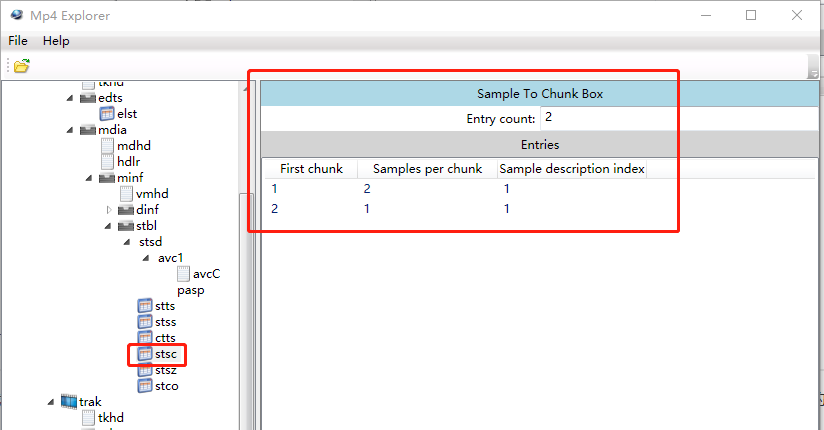
The two rows shown above do not mean that there are only two chunks. Repeated data has been compressed, using the same scheme as before.
In the first row, First Chunk is 1, Samples per chunk is 2, and Sample description index is 1. This means that the first chunk contains two video frames.
The final Sample description index field identifies which Sample Description Box (the stsd table) is being used. This file has only one Sample Description Box, but there can be more than one.
The entries after stsc are omitted, which means that starting with chunk 2, every subsequent chunk contains only one video frame. This video stream has 240 frames in total. The first chunk has 2 frames and all later chunks have 1 frame, so there are 239 chunks in total.
The concepts of chunk and sample are important. To locate a frame using the MP4 index, first locate its chunk and then locate its sample within that chunk.
Now that we understand the Sample-to-chunk mapping, we only need to find the position of each chunk to locate each frame. This position information is in the stco table, whose full name is Chunk Offset Box. See the image below:
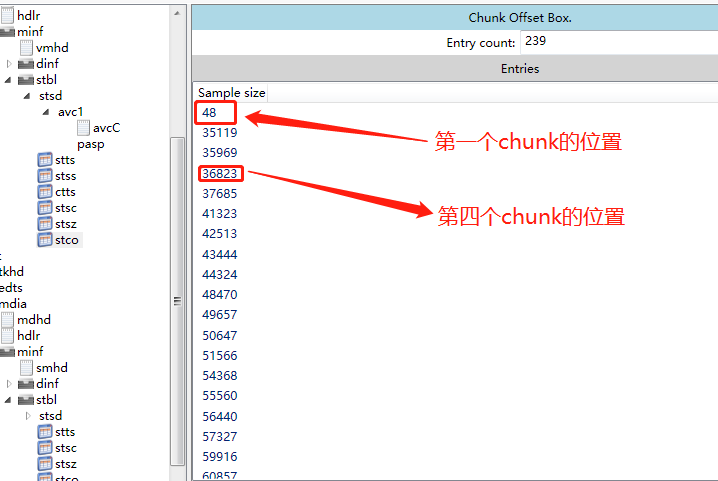
Mp4Explorer displays a field incorrectly in the image above. The field name is shown as Sample size, but this field is not a size; it is an offset. The correct name is Chunk Offset.
As shown above, the first chunk starts at byte 48 in walking-dead.mp4 and contains two frames. We jump to byte 48 in Notepad++. In hexadecimal, 48 is 0x30, as shown below:
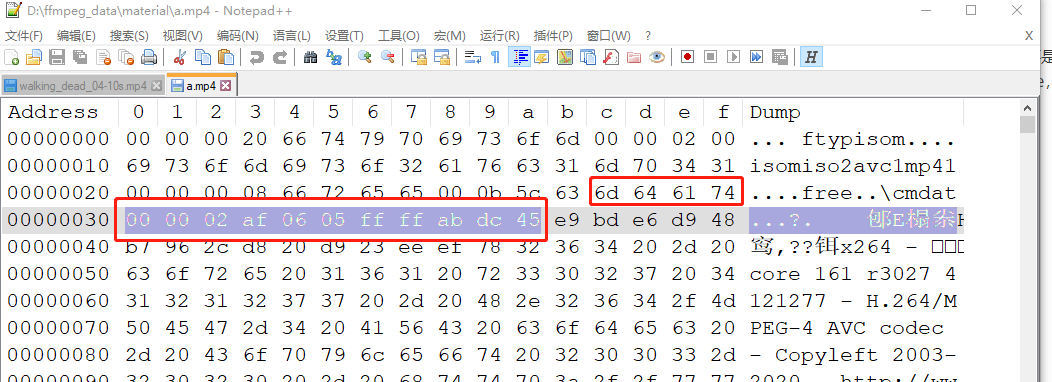
At 0x30, mdat appears immediately before the data. As mentioned earlier, mdat is the box that stores the actual audio and video stream. Using these index tables, we have found the location of the first video frame. Let us verify it by opening the Qt Creator ffplay debugging environment prepared earlier (see the later ffplay chapter for environment setup) and inspecting the first packet at a breakpoint.
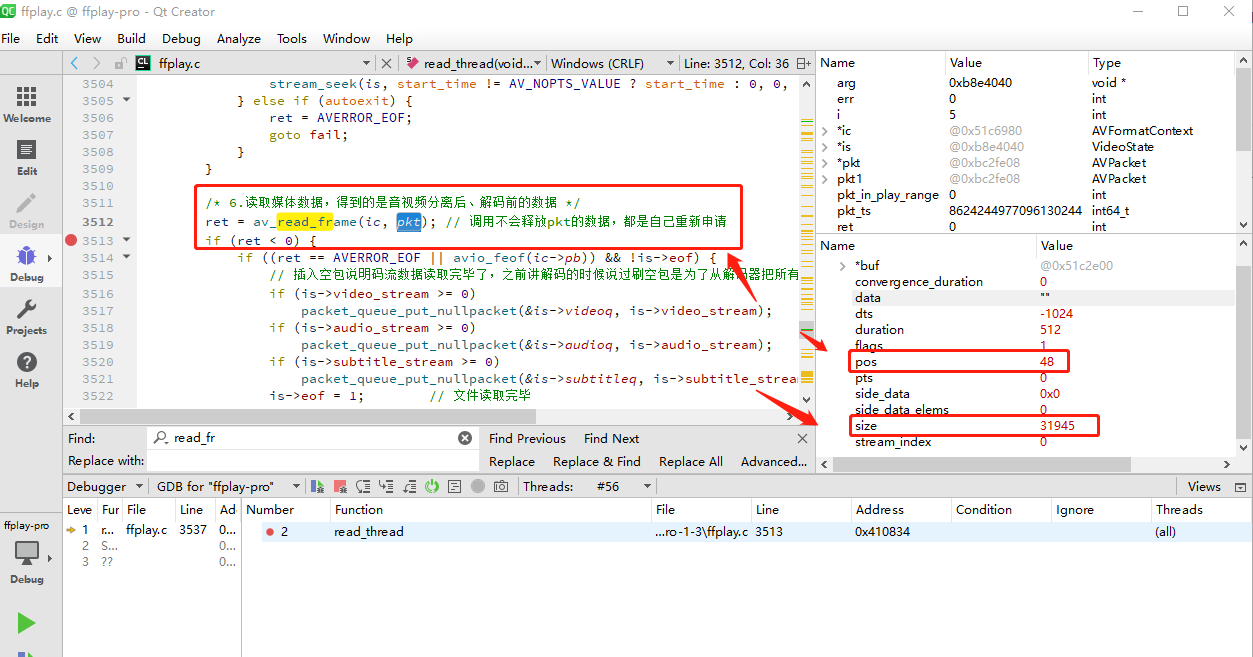
In the image above, I set a breakpoint at av_read_frame(). The first AVPacket read from the file has a pos value of 48, matching the 48 in the stco table. Its size is 31945, matching the 31945 in stsz.
Now let us inspect the data in the first AVPacket:
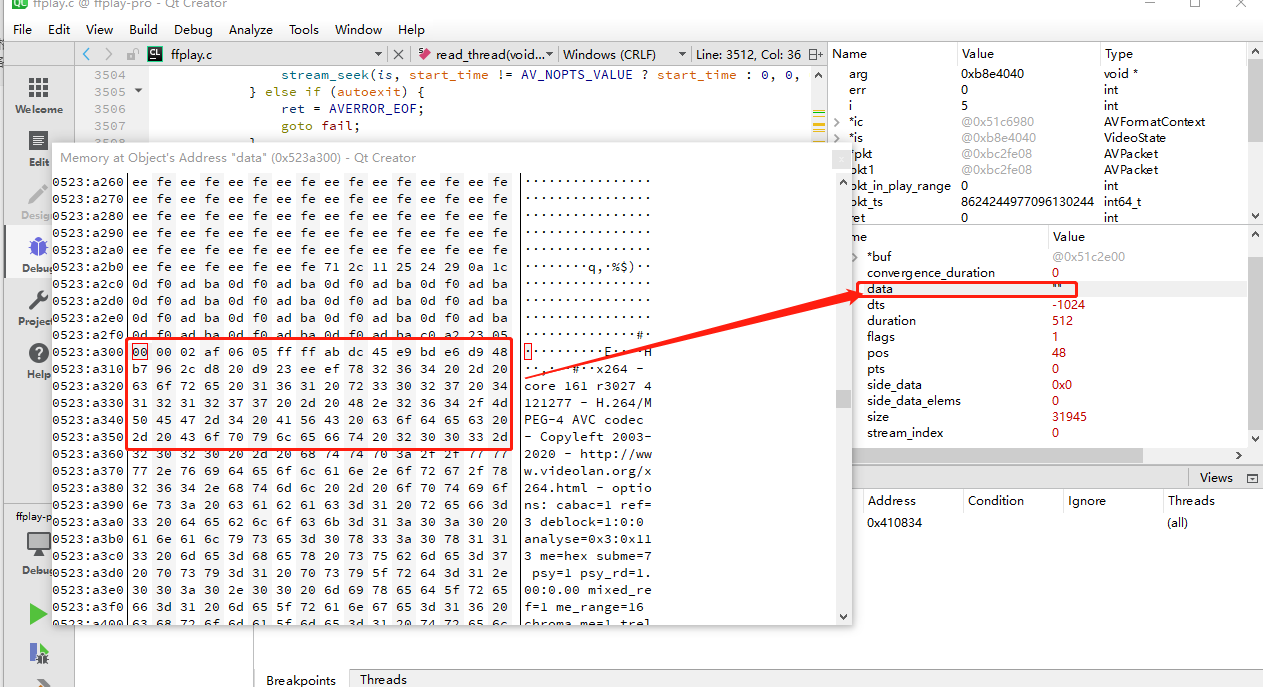
The AVPacket data read by FFplay is exactly the same as the data at byte 48 in Notepad++.
We have found the location of the first video frame. How do we find the second? The stsc table shows that the first chunk contains two frames, so the second frame immediately follows the first. The first frame starts at 48 and has a size of 31945, so the second starts at 48 + 31945 = 31993, which is 0x7cf9 in hexadecimal. Therefore, the second frame is at file offset 0x7cf9, as shown below:
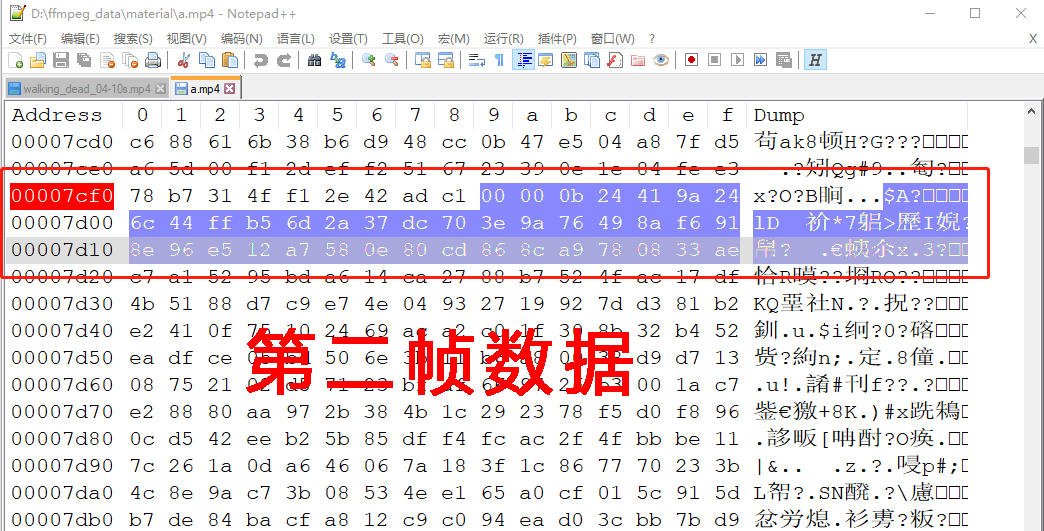
You can print the data of the second video frame's AVPacket in Qt to verify that the 0x7cf9 location is correct.
At this point, we can see the difference between MP4 and FLV. In MP4, apart from the mdata box that stores the actual audio and video data, all other boxes are auxiliary tables. As a result, MP4 has strong editability, and lookups for many scenarios are very efficient. FLV is more like a singly linked list: to find information, you normally have to scan through it. MP4 is different; the information is already organized in the appropriate boxes, so no traversal is needed. MP4 is therefore more like a database with many indexes, making lookups fast.
Comparing MP4 and FLV also shows that audio and video formats vary widely. FLV does not have an stsz table, but whether FFmpeg parses FLV or MP4, the size field of the resulting AVPacket is still available. FFmpeg effectively wraps many complicated formats behind a common interface, making application code more general.